Unity has now put a date on the end of the Built-In Render Pipeline: it will not exist in Unity 7.0, which is due in Q1 2027. If your mobile game still renders with Built-In, the safest route is to move it to the Universal Render Pipeline (URP) on Unity 6.7 LTS, and this guide shows how to plan that move without breaking a live game.
▶ Watch the video version (about 4 minutes):
What Unity announced and when
The change has come in three steps this year. In its Render Pipelines strategy for 2026, Unity marked the Built-In Render Pipeline as deprecated in Unity 6.5 and said it would "strictly not recommend it for any new titles", but did not pick a removal date. Then, in The path to a single render pipeline in Unity 7, it confirmed that Built-In will be obsolete and removed in Unity 7.0. It also recommended migrating to URP in 6.7 before opening a project in Unity 7.
Unity 7 itself was announced at Unite Seoul in July. According to Unity's press release, it enters early beta in December and ships in Q1 2027. Unity SVP Adam Smith told Inven Global that Unity 6.7 LTS will be released in December. The 6.7 beta is already public.
| Version | Built-In Render Pipeline | What it means for you |
|---|---|---|
| Unity 6.5 / 6.6 | Deprecated, still works | No new Built-In features; start planning |
| Unity 6.7 LTS (December 2026) | Fully supported | Last version with Built-In; supported to end of 2028, end of 2029 with Extended Support |
| Unity 7.0 (Q1 2027) | Removed | Project must already be on URP (or a custom SRP) |
HDRP is on a slower track: deprecated in 7.0 and supported through the first Unity 7 LTS. For mobile studios that matters little, because HDRP has never supported iOS or Android, according to Unity's render pipeline feature comparison.
Do you need to migrate now?
Not every project needs to move this quarter. Two years of 6.7 LTS support is a real runway. A simple way to decide:
- New projects: start on URP. There is no reason to begin a new game on a deprecated pipeline, and Asset Store content and tutorials are moving to URP by default.
- Live games you will update past 2028: migrate during 6.7 LTS, on a branch, between content updates. Doing it while Unity still supports both pipelines in the same editor is much easier than doing it under pressure later.
- Games in maintenance mode: if a title only gets store-compliance updates and will be retired before the end of 2028, staying on Built-In in 6.7 LTS is a reasonable choice. Write that decision down so nobody opens the project in Unity 7 by accident.
- Games built on old Asset Store shaders or plugins: check vendor support first. A shader pack that has no URP version is the most common reason a migration turns from days into weeks.
What converts automatically and what does not
Unity's tooling does a lot of the mechanical work, but not all of it. The Render Pipeline Converter handles prebuilt content. It cannot rewrite your own shader code.
| Part of the project | Automatic? | Notes |
|---|---|---|
| Rendering and quality settings | Yes | Creates the URP Asset and Universal Renderer |
| Materials on built-in shaders | Yes | Prebuilt shaders such as Standard map to URP Lit and similar |
| Read-only materials (Default-Diffuse) | Yes | Separate converter; can take a while on big projects |
| Animation clips on material properties | Yes | Runs after the material upgrade |
| Post-Processing Stack v2 | Yes | Converted to URP Volumes and profiles |
| Custom and surface shaders | No | Rewrite in HLSL for URP or rebuild in Shader Graph |
| Lighting look | Partly | Needs a review; see Light Falloff Mode below |
| Third-party shaders and effects | Depends | Need a URP version from the vendor |
The custom shader guide notes that materials using unconverted custom shaders turn magenta after the switch. That makes them easy to find. Surface shaders need the #pragma surface directive removed and the effect rebuilt with custom code, an Asset Store replacement or a Shader Graph.
Step by step: migrating on Unity 6.7
This is the order we use. It follows Unity's migration workflow and adds what a mobile team needs around it.
- Branch and back up. Unity warns that the conversion makes irreversible changes. Work on a separate branch and keep the Built-In build you ship today as your baseline.
- Upgrade the editor first, migrate second. Move the project to the 6.7 beta, or to 6.7 LTS once it ships, while still on Built-In. Fix compile errors and SDK problems before you touch rendering, so you know which step caused which bug.
- Record a baseline. Capture screenshots of key scenes and note frame time, GPU time, memory and build size on two or three real phones, including one low-end Android device.
- Run the migration wizard. In 6.7 (from 6000.7.0b3), open Window > Analysis > Project Auditor and choose the Migrate to URP tab. Unity says the wizard installs the URP package, creates and assigns the render pipeline assets, and then hands off to the Render Pipeline Converter. Converter results now show up inside Project Auditor, so you get one issue list.
- Convert materials and settings. Review what the converter found, untick anything you want to handle by hand, then convert. On a build server you can run the same step in batch mode with
-executeMethod UnityEditor.Rendering.Universal.Converters.RunInBatchModeCmdLine -container BuiltInToURP, as described in the conversion docs. - Fix the magenta. Rewrite or replace each custom shader. Simple unlit and UI shaders are usually quick. Custom lighting models take longer.
- Match the look. Compare screenshots with the baseline and adjust lights, shadows and post-processing.
- Match the performance. Tune the URP Asset per quality level (next section), then test on the same phones.
- Ship a test build to an internal track or TestFlight before the update goes to players.
Getting the look and frame rate back on phones
Two areas take most of the time after conversion: lighting that looks different, and quality levels that no longer cost what they used to.
Lighting
Built-In and URP attenuate point and spot lights differently, which is why converted scenes often look darker or harsher. The Unity 6.7 beta graphics notes add a Light Falloff Mode setting. Set it to Quadratic and attenuation matches Built-In, for both real-time and baked lights. The default stays Inverse Squared, so nothing changes until you opt in. Two details from that post: the option was called "Linear" in 6000.7.0b1 and renamed in b3, and it is moving from the URP Asset to project-wide Graphics Settings in a later beta. Built-In also stores the spot cone shape in a cookie texture, so you may need to assign that cookie to your Spot Lights to match the cone.
If your game uses Enlighten Realtime GI, note that 6.7 LTS is the last release that supports it. Unity points URP users to the new Surface Cache GI instead, which is aimed at a wide range of hardware but is new, so test it on your weakest target device before you rely on it.
Quality levels
Many settings that lived in Project Settings > Quality now sit on the URP Asset. Unity publishes a mapping of its Low and High presets that roughly matches Built-In performance. For example, its Low preset turns MSAA, main-light shadows and additional lights off, while High uses 2x MSAA, 2048 shadow resolution and up to 4 per-pixel additional lights per object. Keep Depth Texture and Opaque Texture off unless an effect needs them; on mobile they cost bandwidth.
URP also offers wins Built-In never had on phones. Unity 6.5 added on-tile post-processing for Vulkan and Metal devices, which runs effects such as tone mapping and color grading without a round trip through memory. Shaders that follow the URP conventions also become compatible with the SRP Batcher, which reduces CPU cost per draw.
A mobile test checklist
Before you ship the URP version, check:
- Every scene on at least one low-end Android phone, one mid-range Android phone and one older iPhone.
- GPU frame time and thermal behaviour over a 15-minute session, not just the first minute.
- Build size and shader variant count against the Built-In baseline.
- UI, masks and sprites, especially custom UI shaders and stencil tricks. Shader Graph gains stencil support in 6.7.
- Ads and IAP flows. Render changes can affect full-screen ad overlays and screenshots.
- Lightmaps, after rebaking.
- Low-memory behaviour on 3 GB and 4 GB Android devices.
Pros and cons of migrating now
Pros: you stay on supported technology, you can use new URP features (SSR, GTAO, AgX tonemapping, on-tile post-processing), and the Unity 7 upgrade later becomes an editor update instead of a renderer rewrite.
Cons: it costs QA time on a live game, custom shaders need real engineering work, and some 6.7 tools are still in beta. Until 6.7 LTS ships, treat the wizard as a preview.
Our take
At Lightning Games we build Unity mobile games in Da Nang, and all our new projects already start on URP. For older titles still on Built-In, our plan is simple: move the project to 6.7 LTS once it is released, run the Project Auditor wizard on a branch, and budget most of the time for custom shaders and lighting review rather than the conversion itself. Our rule is to not combine the pipeline migration with a big content update. Ship one, measure, then ship the other. Games we plan to retire before 2029 stay on Built-In in 6.7 LTS, clearly labelled, so nobody upgrades them to Unity 7 by mistake.
Sources
- The path to a single render pipeline in Unity 7 (Unity)
- Render Pipelines strategy for 2026 (Unity)
- Graphics updates with the Unity 6.7 beta release (Unity Discussions)
- Unity 7 roadmap revealed at Unite Seoul (Unity press release)
- Adam Smith interview on Unity 7 (Inven Global)
- Migrate from the Built-In Render Pipeline to URP workflow (Unity manual)
- Convert custom shaders for URP compatibility (Unity manual)
- Match the quality level performance of the Built-In Render Pipeline in URP (Unity manual)
Want to see what we build with Unity? Visit Lightning Games.
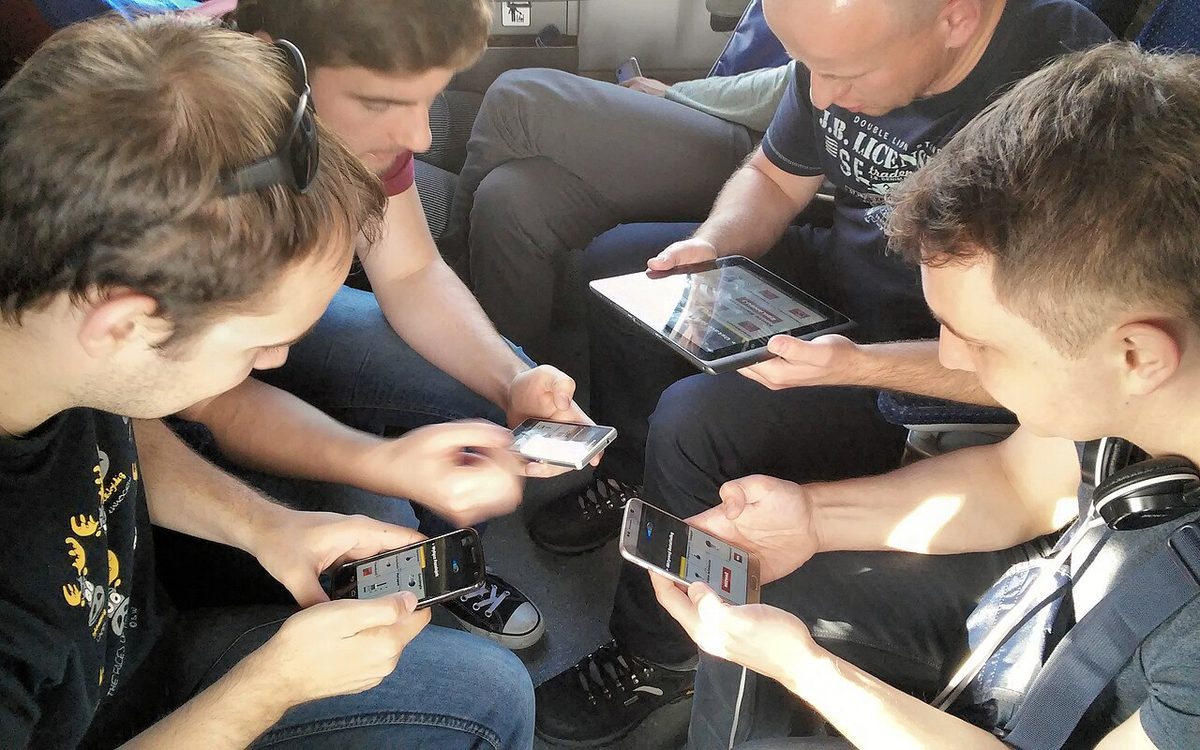
Cover photo: Spaceteam multiplayer mobile game by Klapi, CC BY-SA 4.0, via Wikimedia Commons (cropped).
Related posts
Unity MethodReload: Edit Gameplay Code Live on IL2CPP Phones
Unity's experimental MethodReload swaps C# method bodies in a running game, even on IL2CPP phones. How to set it up, its limits, and when it is worth trying.

Unity CLI and Pipeline 0.9: Automate Mobile Builds and Tests
Unity's new CLI and the Pipeline package let scripts drive a running Editor. What changed in 0.9, the commands that matter for mobile, and a safe setup for small studios.
Google's EDM4U Is Archived: Moving Unity Projects to Unity's EDM
Google's EDM4U goes read-only on 26 October 2026. What Unity's new External Dependency Manager changes, what it drops, and a safe migration plan for live mobile games.