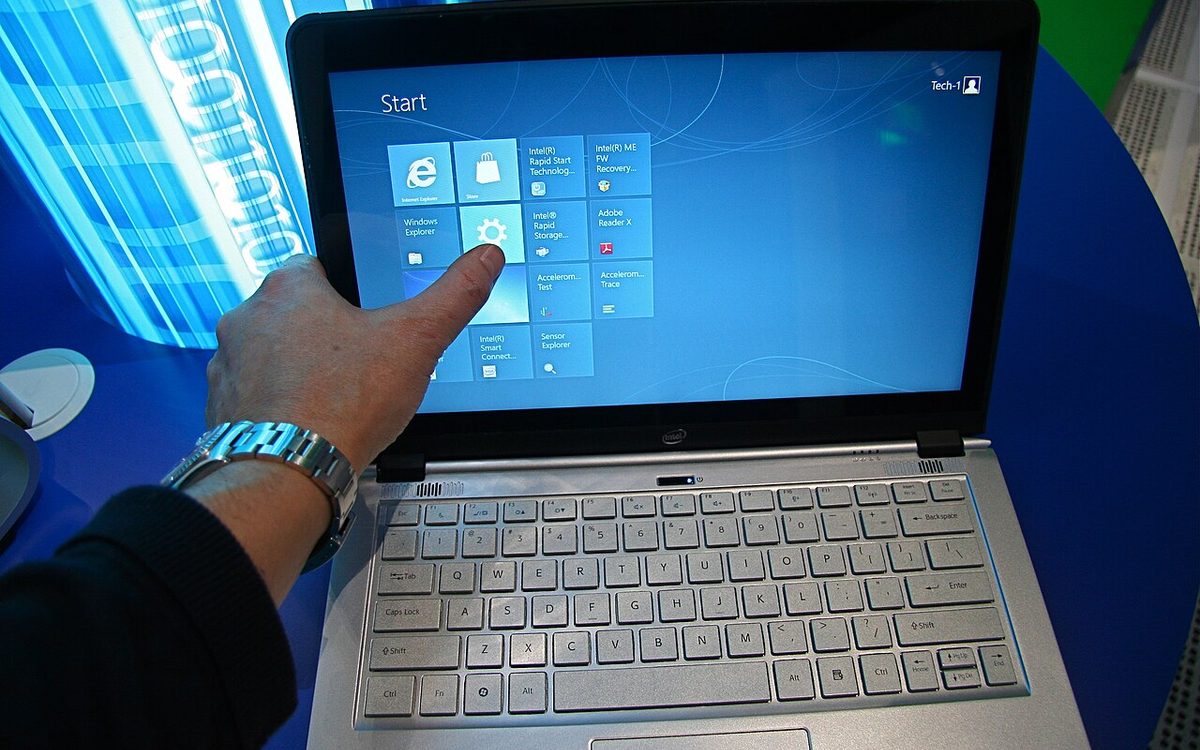
Apple's first touchscreen Mac, the MacBook Pro with PROLED XDR Display, has been in customers' hands since November 6, and your existing Mac app already runs on it. That is good news and a trap at the same time: macOS turns a finger tap into a mouse click, so most apps look fine in a quick demo and then fail at resize handles, hover menus and custom drag code. This guide walks through what Apple has published for developers, what actually changes in your code, and a practical audit you can run this week without buying the new laptop.
▶ Watch the video version (about 4 minutes):
What shipped, and what it means for app teams
Apple announced the new MacBook Pro on October 28, 2026 in 14-inch and 16-inch sizes, starting at $2,899 and $3,399 in the US. The touch sensor is built into the OLED panel rather than layered on top. Users can swipe to scroll, pinch to zoom, drag and drop between apps, double-tap a window to fill the screen and flick a window to tile it. Apple is clear that touch works "in tandem" with the keyboard and trackpad; it does not replace them.
The developer side arrived the same day. Apple's Get ready for Touch on Mac hub collects three Tech Talks (Design for Touch on Mac, Bring Touch to your Mac app, Bring Live Activities to Mac), the Xcode 27.3 beta, and new documentation. The November edition of Hello Developer also pointed to two online Group Labs on November 18 and 19 and a new technote for games.
Two points shape the work:
- Nothing in macOS changes size. The design talk says macOS looks the same on a touch Mac as on any other Mac. There is no "touch mode" and no compact layout, unlike the iPhone Duo's inner display.
- Touch is a secondary input. Apple's guidance frames it as brief, intentional interactions: tapping a button, scrubbing a timeline, zooming a photo. Long sessions still happen on the keyboard and trackpad.
So the job is not a redesign. It is an input audit plus a few targeted fixes.
How macOS handles touch in an existing app
Apple's article Adopting gesture recognizers in your app has a four-row table that works as a triage list:
| Your code | What happens with touch | What to do |
|---|---|---|
| Standard AppKit controls, gesture recognizers | Works, no changes | Test it |
mouseDown overrides, tracking loops | One-finger tap/drag is emulated only | Move to gesture recognizers |
NSButton/NSSlider subclasses overriding mouse methods | AppKit falls back to a tracking loop | Use target-action tracking events |
Custom NSGestureRecognizer subclasses | One that never ends blocks its view | Handle cancellation |
The key sentence in that article: AppKit emulates mouse events from a single finger, "but it doesn't deliver direct touches (NSTouch) through the responder chain or through event monitors." Gesture recognizers are the only way to receive multi-finger gestures or individual touches. If your app relies on NSEvent monitors or overrides sendEvent(_:) to catch input, touch will never reach that code.
SwiftUI and Mac Catalyst apps are in a better position. According to the AppKit Tech Talk, existing SwiftUI gestures and Mac Catalyst (UIKit) gestures already work with touch. SwiftUI adds GestureInputKinds (with options such as .directTouch and .pointer) so a gesture can behave differently for a finger and a mouse.
Step 1: Find the code that breaks
Start with a search, using the symbols Apple lists:
nextEvent(matching:until:inMode:dequeue:)andtrackEvents(matching:timeout:mode:handler:), which usually mean a custom tracking loop.- Overrides of
mouseDown(with:)andmouseDragged(with:). NSApplication.shared.currentEventread inside control action methods.
The last one matters even on Macs without touch. Because AppKit now routes NSControl interactions through gesture recognizers, currentEvent no longer reliably returns the event that triggered an action. If you check for a Shift-click that way, switch to NSEvent.modifierFlags, which reports the state at the moment you ask. Note also that a touch does not register in NSEvent.pressedMouseButtons.
A subtle one from the same article: AppKit decides whether to fall back to a tracking loop based on whether your control subclass overrides a mouse method, not on what the override does. A one-line mouseDown override added years ago for analytics can quietly opt a button out of the new path.
Step 2: Replace mouse code with gesture recognizers
AppKit already has recognizers for click, press, pan, magnification and rotation (NSClickGestureRecognizer, NSPressGestureRecognizer, NSPanGestureRecognizer, NSMagnificationGestureRecognizer, NSRotationGestureRecognizer). If you have written UIKit, the model will feel familiar.
For code you would rather not rewrite in one go, Apple suggests a low-risk path: move the body of your tracking loop into shared functions, then add a touch-only recognizer next to it. Setting buttonMask = 0 makes a recognizer ignore the physical mouse, so the old mouse path keeps working while touch goes through the new one.
Custom recognizers need extra care:
- Always reach a terminal state (
ended,failedorcancelled). A recognizer that never finishes keeps exclusive control of its view, and the app looks frozen. - Make every action method handle the
cancelledstate. - Apple's games technote warns against adding up movement deltas: a finger can tap two distant points one after another, so always read the location from the event itself.
Step 3: Fix hit targets and hover
A finger is much less precise than a pointer. In the Bring Touch to your Mac app talk, Apple's sample code expands custom controls to a minimum of 36 points on each axis. Standard controls already meet this. The rule is to expand the touchable area, not the visible control: keep a small resize grip looking as it does today, but accept touches in a larger zone around it.
The mechanism is a recognizer on the parent view plus location filtering in its delegate. You need both delegate methods, because direct touches skip one of them:
gestureRecognizer(_:shouldAttemptToRecognizeWith:)filters pointer events (clicks, trackpad gestures).gestureRecognizer(_:shouldReceive:)filters each newNSTouch.
Hover is the other gap. A touch display has no hover, so anything driven by mouseMoved(with:) or NSTrackingArea (tooltips with key information, toolbars that appear on hover, previews on mouse-over) is invisible to a touch user. Give each hover-only action a visible or tap-based alternative.
Also check overlays. Gesture recognizers are gathered by walking the view hierarchy from the top-most hit view, so a transparent "click catcher" view placed over a control can now block that control entirely. For buttons inside scroll views, set isCancellableByScrollGesture so a finger that starts on a button and then drags will scroll instead of getting stuck.
Step 4: Cross-platform frameworks and games
If your Mac app is built with Flutter, React Native for macOS, Electron or a game engine, AppKit cannot see what each part of your content does. It applies a generic emulation per window: a tap becomes a click, touch-and-pan becomes a trackpad scroll, touch-hold-and-move becomes a drag, a long press becomes a right-click, and a two-finger pinch or rotate becomes the matching trackpad gesture. Three or more fingers are ignored.
Once your framework handles touch itself, set the Info.plist key 0 to YES so AppKit stops injecting its emulation recognizers. Apple's own page says most AppKit apps do not need this key; it is meant for apps that embed a non-AppKit renderer. As of mid-November we have not found native macOS touch support announced by the major cross-platform frameworks, so treat the emulation as your baseline and test it.
For games, Apple published TN3216: Supporting touch input for games on macOS. Points worth knowing:
- If
LSApplicationCategoryTypeis a games category, AppKit uses a game-specific emulation that sends amouseMovedto the tap location before eachmouseDown, so a cached cursor position gets refreshed. - By default each touch surface also shows up as an extra
GCMouse. Its deltas are not continuous, so never use them to track an absolute pointer. - Use touch for short, one-handed moments players expect, such as inventory, map zoom and settings, not as a replacement for mouse aim or a controller.
Step 5: Test without the new laptop
You do not need a $2,899 machine to start. Apple's guidance is to connect an iPad running iPadOS 27 over Sidecar; with the latest macOS and Xcode betas, AppKit routes touches on the iPad screen the same way it does on a touch Mac. Then walk every window, sheet and popover with a finger and confirm Apple's checklist:
- Controls respond to a tap, and buttons highlight and activate.
- Dragging a view, selecting text and scrolling work with one finger.
- Pinch and rotate work where your app supports them.
- Small targets such as resize grips and grab handles are easy to hit.
- The app stays responsive after a touch interaction ends.
Avoid branching on hardware. NSScreen.touchCapabilities exists for narrow cases like offering signature capture, but Apple recommends handling events the same way regardless of source and changing presentation based on the interaction type instead.
Who should move first
| App type | Priority | Main risk |
|---|---|---|
| Creative tools (canvas, timeline, audio) | High | Custom drag code, tiny handles |
| Productivity with dense lists | Medium | Hover actions, small targets |
| Cross-platform (Flutter, Electron) | Medium | Generic emulation only |
| Mac games | Medium | GCMouse deltas, cached cursor |
| Simple forms, standard controls | Low | Mostly works, still test |
Apple's launch materials lean heavily on creative and productivity software: its own Pixelmator Pro, Logic Pro and Final Cut Pro, plus third-party apps such as Notion, Canva, Zoom and Microsoft Office. That tells you where users will expect touch to feel natural first.
Our take
At Lightning Studio we build mobile apps and Unity games, and most of our Mac exposure is through Mac Catalyst, SwiftUI and engine builds. For that kind of code, touch on Mac is a small, well-scoped task: run the search in Step 1, fix hit targets and hover, and test on an iPad over Sidecar. Budget one to three days for a typical app with a few custom views, more if you have a canvas or timeline. We would not add touch-only features yet; the hardware is a premium MacBook Pro, and the installed base of touch Macs will stay small for a while. The better investment is moving custom mouse code to gesture recognizers now, because that same code path is what AppKit uses for the trackpad, Sidecar and touch, and it fixes the currentEvent issue on every Mac.
Sources
- Apple Newsroom: MacBook Pro with PROLED XDR Display and Touch
- Apple Developer: Get ready for Touch on Mac
- Apple Developer: Adopting gesture recognizers in your app
- Apple Developer: TN3216, Supporting touch input for games on macOS
- Apple Developer: NSIsTouchNative
- Apple Developer: Hello Developer, November 2026
- MacRumors: MacBook Pro with Touch Display, 15 more details
Need a touch audit for your Mac or Catalyst app, or help moving custom mouse code to gesture recognizers? Contact Lightning Studio at support@lightning-studio.org or visit https://lightning-studio.org/studio/.
Cover photo: Touch on Laptop Screens by Intel Free Press, CC BY 2.0, via Wikimedia Commons (cropped).
Related posts
On-Demand Resources Is Ending: Move Your iOS App to Background Assets
From early 2027 App Store Connect rejects new On-Demand Resources uploads. Who is affected, how Background Assets works, and a step-by-step migration plan.
Flutter 3.50: An Upgrade Plan for Production App Teams
Flutter 3.50 deprecates the bundled Material library, makes native interop stable and tightens Android Intents. What can break and a safe upgrade order.
Apple's New Age Rating Questions: Shared Location and Dating
From November 16, App Store Connect asks about location sharing and dating or AI romance features. Here is who is affected and how to update before January 12, 2027.