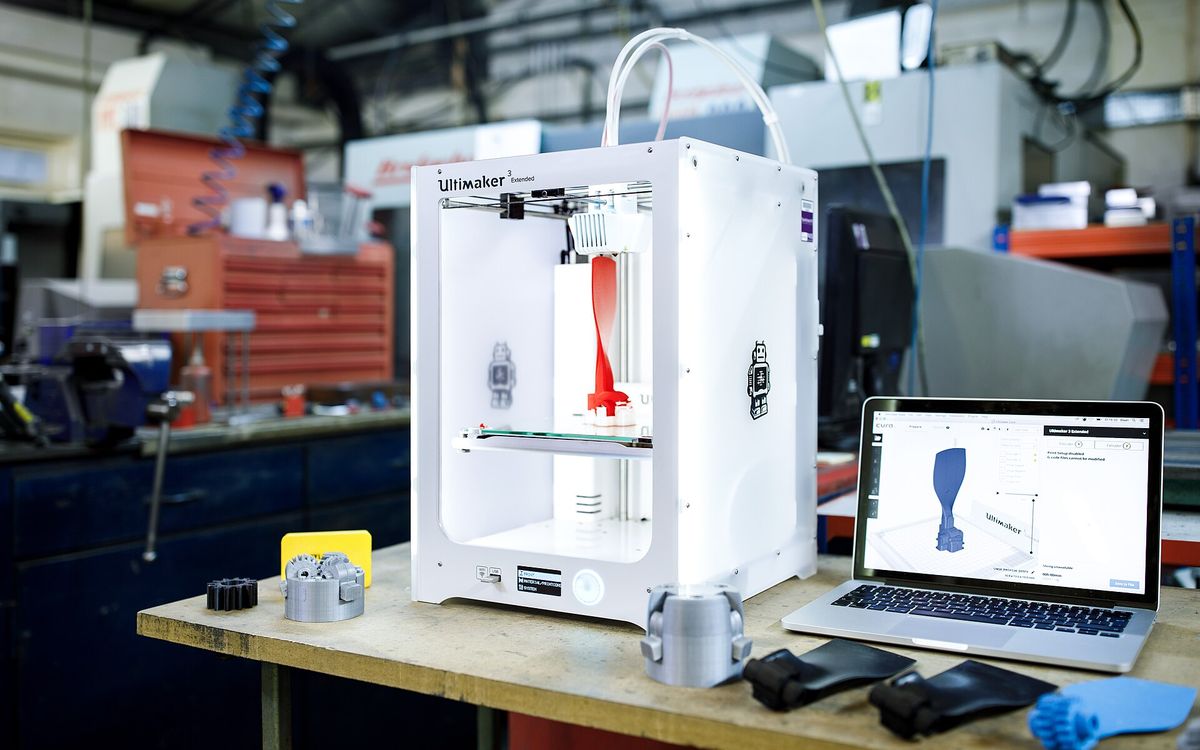
A model that looks perfect on screen can still be impossible to print. Rendering software is forgiving: it will happily show surfaces with no thickness, gaps between faces and walls thinner than a hair. A printer is not forgiving. Most delays we see at Lightning Lab come from a handful of file problems, and almost all of them are quick to fix before you export.
Here is what we check on every file, in the order we check it.
1. Units and scale
STL files do not store units. They are just a list of triangles with coordinates, and slicers assume those numbers are millimetres. If you modelled in metres, centimetres or inches, the part can arrive 10, 25.4 or 1000 times too big or too small.
- Model in millimetres where you can, or set the export unit to millimetres.
- In Blender, apply the object's scale before exporting, and check that the scene unit scale gives real-world sizes.
- For architecture models, scale down before export. A 1:100 model of a 20 m building is 200 mm long, not 20 m.
- Always tell us the intended size of the longest side when you send a file. It takes two seconds and catches unit errors immediately.
2. Watertight, manifold geometry
A printable model must be a closed solid: something that could, in theory, hold water. In mesh terms this is called manifold or watertight. The slicer needs to know clearly what is inside the part and what is outside, layer by layer.
Common problems:
- Holes in the mesh, where faces are missing.
- Non-manifold edges, where more than two faces share one edge, or faces touch only at a point.
- Flipped normals, faces pointing inward, so the slicer reads inside as outside.
- Zero-thickness surfaces, such as a single plane for a sign or a roof. These have no volume and simply disappear when sliced.
- Overlapping or intersecting shells, for example a separate cylinder pushed into a box without being joined.
How to fix them:
- In CAD tools like Fusion 360, SolidWorks or Onshape, export solid bodies, not surfaces. These are usually watertight by default.
- In Rhino, check that the object reports as a closed polysurface or a closed mesh before export.
- In SketchUp, every part that should be solid needs to be a solid group or component. Extensions such as Solid Inspector help find the gaps.
- In Blender, the built-in 3D Print Toolbox add-on checks for non-manifold edges, thin walls and intersecting faces.
- Most slicers can also auto-repair small errors. That is fine for minor issues, but a model with large gaps should be fixed at the source.
If a model is several separate shells that should print as one part, join them with a Boolean union first.
3. Wall thickness
Thin walls are the most common reason a print fails, breaks in handling, or comes out with features missing. Our typical minimums:
| FDM (0.4 mm nozzle) | Resin | |
|---|---|---|
| Absolute minimum wall | ~0.8 mm (two lines) | ~0.5 mm, short and supported |
| Recommended wall | 1.2 to 2 mm | 1 to 2 mm |
| Shell for hollowed parts | n/a | ~1.5 to 2.5 mm |
| Free-standing pin or post | ~2 mm diameter or more | ~1 mm diameter or more |
Why 0.8 mm for FDM? With a 0.4 mm nozzle, a wall is drawn as whole lines. Anything thinner than about two line widths either gets skipped by the slicer or prints as a single fragile line. Typical FDM settings use 2 to 3 perimeters, so a wall of 1.2 mm or more prints solid and strong.
Tall, thin walls also wobble during printing. If a wall is much taller than it is thick, add thickness, ribs or a fillet at the base.
4. Minimum feature size
Detail has limits too, and they are different for each process.
FDM, typical guide values with a 0.4 mm nozzle:
- Embossed (raised) detail: at least ~0.6 mm wide and ~0.4 mm tall.
- Engraved (cut-in) detail: at least ~0.6 mm wide and ~0.4 mm deep.
- Text: keep letter height around 5 mm or more, in a bold, simple font.
- Small holes: holes print slightly smaller than modelled, and holes under ~2 mm are unreliable. Drill them out afterwards if they need to be exact.
Resin:
- Fine detail of a few tenths of a millimetre is realistic, which is why we use it for figures, keycap legends and miniature architecture.
- Hollow resin parts need drain holes, usually two or more of at least ~3 mm, so uncured resin can flow out during washing.
If your part has to fit with another part, there is more to it than minimum size. Read tolerances for functional parts for clearances, holes and inserts.
5. Choosing a file format
We accept .STL, .OBJ, .3MF and .GCODE. Here is how they differ:
| Format | What it stores | Notes |
|---|---|---|
| STL | Triangles only | Universal, no units, no colour. Fine for single-material parts |
| OBJ | Triangles or polygons, optional colour and texture | Common from 3D art tools. No reliable units |
| 3MF | Mesh, units, colours, multiple parts, print settings | Modern and compact. Our preferred format when you have it |
| GCODE | Machine instructions | Already sliced for one specific printer and material |
A GCODE file is tied to the printer, nozzle and filament it was sliced for. We can look at it to see the settings you want, but in most cases we re-slice from the model file, so please send the STL, OBJ or 3MF as well.
6. Export settings
Curved surfaces are turned into flat triangles on export. The resolution setting controls how many.
- Too coarse and curves come out faceted, with visible flat panels on cylinders and spheres.
- Too fine and the file becomes huge without any visible improvement, since the printer cannot reproduce detail smaller than its own resolution.
- A deviation or chord tolerance of about 0.01 to 0.05 mm is a good range for most parts. In tools with presets, High or Fine refinement is usually right.
- Choose binary STL, not ASCII. It holds the same data in a much smaller file.
- For multi-part assemblies, export each part that prints separately as its own body or file, and name them clearly.
Quick checklist before you send
- Units are millimetres and the size is correct.
- The model is closed and manifold, with no zero-thickness surfaces.
- Walls are at least 0.8 mm for FDM, ideally 1.2 mm or more.
- Small details and text meet the minimum feature sizes.
- Hollow resin parts have drain holes.
- The file is STL, OBJ or 3MF, exported at sensible resolution.
Once the file is ready, the next decisions are how the part sits on the bed and how fine to print it. See supports, overhangs and print orientation and layer height explained.
Send it to us
Share your file through a Google Drive link with lab@lightning-studio.org and tell us the size, material, colour and layer height, for example 0.1 or 0.2 mm. We check every file before printing and will tell you if something needs fixing. If you only have a sketch or photo, we can also model it for you. Details are on the Lab page.
Cover photo: 3D printing functional prototypes by Svitlana Lozova, CC BY-SA 4.0, via Wikimedia Commons (cropped).
Related posts

3D Printing in Education: A Practical Guide for Teachers and Schools
What to print for teaching, STEM projects students can design themselves, classroom safety, budgeting and a simple lesson flow from sketch to printed part.
Tool Changers vs Filament Swappers: Choosing a Multicolor 3D Printer
Creality K3, Sovol M1D and Bambu's upcoming H3C bring tool changing to mid-range prices. How the five multicolor approaches compare on waste, time and cost.
3D Printing Cosplay Props: Splitting, Finishing and Wearability
How to split big props to fit the bed, key and join the pieces, pick PLA, PETG or resin, keep shells light, then fill, paint and pad them for wearing.