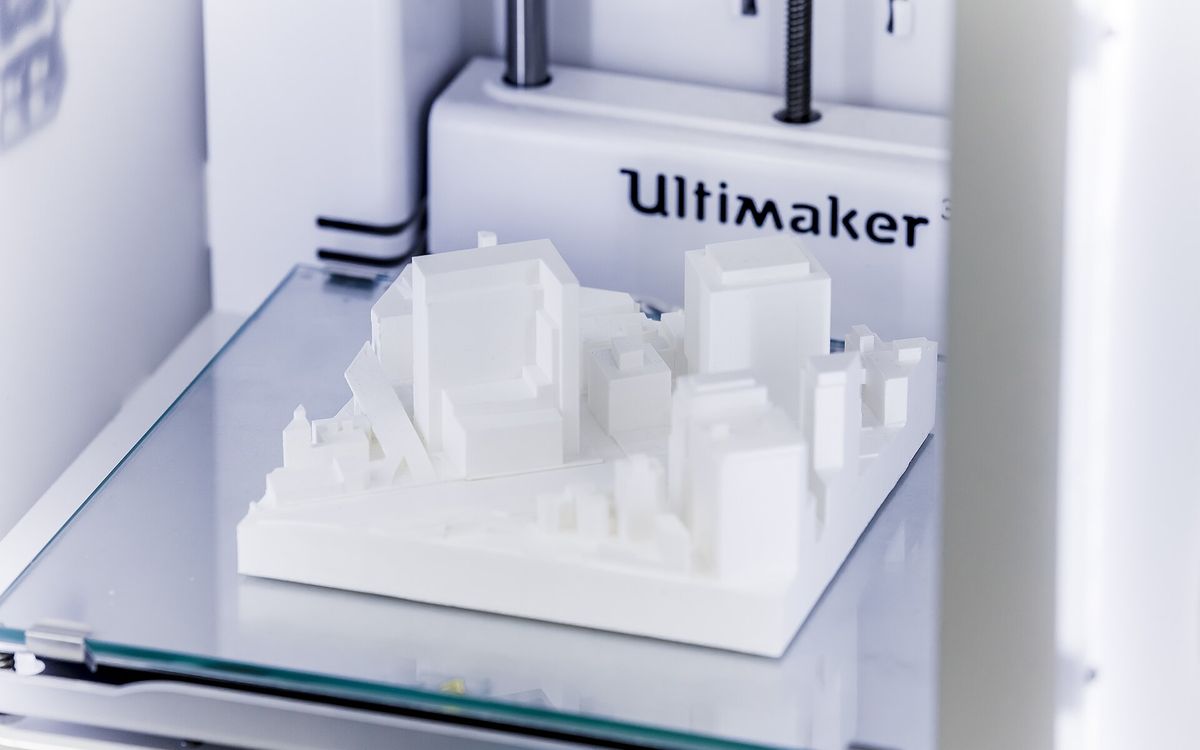
Most architecture models we print fail for the same few reasons: walls that are too thin at scale, a file that is not a closed solid, or a deadline with no room for a second attempt. This guide covers each of those, plus how to choose material and split the model.
Start with the scale
Scale decides almost everything else. At 1:100, one metre becomes 10 mm. At 1:200, it becomes 5 mm. At 1:500, it becomes 2 mm.
That means real building elements shrink fast:
| Real element | 1:100 | 1:200 | 1:500 |
|---|---|---|---|
| 200 mm wall | 2 mm | 1 mm | 0.4 mm |
| 100 mm partition | 1 mm | 0.5 mm | 0.2 mm |
| 50 mm window mullion | 0.5 mm | 0.25 mm | 0.1 mm |
| 1.1 m railing height | 11 mm | 5.5 mm | 2.2 mm |
| 3 m floor height | 30 mm | 15 mm | 6 mm |
Compare those numbers with what a printer can actually make. With a standard 0.4 mm nozzle, an FDM printer needs at least two extrusion lines for a wall that stands up properly, so about 0.8 mm is a practical minimum, and 1.2 mm is safer for tall walls. Resin can hold thinner features, roughly 0.5 mm for walls and less for short raised details, but very thin resin parts are brittle.
So a 1:100 massing model in FDM is easy. A 1:200 model with every interior partition is borderline. A 1:500 urban block with mullions is not realistic unless you simplify.
Thicken and simplify for the scale
A model built for drawings is not a model built for printing. Before exporting, make a separate print version:
- Thicken walls to at least the printable minimum, even if that is thicker than real.
- Remove what will not print: mullions, handrails, furniture, door handles, entourage, MEP, text annotations.
- Replace glazing with a recess or a flat panel. Glass does not exist in a print; either leave an opening or print a thin solid surface.
- Turn railings into solid parapets at small scales.
- Merge tiny steps into a ramp or a single block if each step would be under about 0.5 mm.
As a rule, if a feature is thinner than about 0.8 mm at scale, either thicken it, remove it, or switch that part to resin. The guide on preparing a model for printing goes deeper on minimum features and wall thickness.
Split the model
Printing a whole building in one piece is rarely the best option. Splitting gives you better surfaces, fewer supports and a model you can open up during a presentation.
Common ways to split:
- By floor. Each storey prints flat on the bed with its floor slab down, so no supports are needed under the slab. Stack them for the massing view and lift them off to show plans. Add small alignment pins and holes, with around 0.2–0.3 mm clearance, so floors sit in the same place every time. See tolerances for functional parts for fit clearances.
- Roof separate. Pitched roofs and cantilevers print better on their own, oriented to avoid supports.
- Site and building separate. Print the terrain or base on its own, and the building separately in another colour or material.
- Large footprints in tiles. If the site is bigger than the build plate, cut it into tiles along roads or plot boundaries, where the seams will be least visible.
For overhangs, balconies and cantilevers, the supports and orientation guide explains the 45° rule and how to orient each piece.
Terrain and site models
Terrain is often the largest and slowest part of a model. A solid block of terrain wastes material and hours. Better options:
- Hollow terrain with a shell of 2–3 mm and low infill.
- Stepped contour layers printed as flat slices, which reads clearly as a site model and prints quickly.
- Thin contour plates of a fixed height, for example 2 mm per contour, stacked and glued.
Keep the vertical scale the same as the horizontal unless your tutor asks for exaggeration.
White PLA or resin?
| Feature | White PLA (FDM) | Resin |
|---|---|---|
| Best for | Massing, 1:100 to 1:200, large sites | Facade detail, 1:200 to 1:500, small pieces |
| Surface | Visible layer lines, matte | Smooth, very fine detail |
| Detail | Around 0.8 mm minimum wall | Down to 0.05 mm layer height, thinner features |
| Size | Large parts and tiles work well | Limited by a smaller build area |
| Durability | Tough, survives transport | Harder but more brittle on thin parts |
| Cost | Lower per volume | Higher, but small batches print together |
White or light grey PLA is the standard choice for conceptual and massing models. It is affordable, reads well under presentation lighting and survives a bus ride. A 0.2 mm layer height is fine for most of it. Use 0.1 mm for pieces with gentle curves or sloped roofs where stepping would show. See layer height explained.
Resin is worth it when facade detail is the point of the model, or for small context buildings and details at 1:200 and below. It is not a good choice for a large site base. Our material guide compares the options in more depth.
A common combination is a PLA site and massing with a resin detail piece for the main building.
Exporting from SketchUp, Revit and Rhino
Whatever the software, the goal is the same: closed solids, correct units, no stray geometry. Export in millimetres and check the size in the slicer before sending.
SketchUp
- Make each part a group or component that SketchUp reports as Solid in Entity Info. If it does not, there are holes, stray edges or internal faces.
- Fix reversed faces: blue back faces should not face outward.
- The free Solid Inspector extension finds and fixes most problems.
- SketchUp models are often drawn in metres or at full size. Either scale the print version to the model scale before export, or tell us the intended scale.
- Export as STL, choose millimetres, and export one file per part if you have split the model.
Revit
- Create a dedicated 3D view. Hide furniture, entourage, annotations, MEP and anything not needed.
- Use a section box to limit the export to the building.
- Export with an STL exporter add-in, or export to a format such as FBX or OBJ and clean it up in another tool. Revit geometry often comes out as many separate pieces, so check it is closed before sending.
- Thicken thin elements like curtain wall panels in the print version, not by relying on the exporter.
Rhino
- Every part should be a closed polysurface or mesh. Use
ShowEdgeswith naked edges to find gaps andJoinorCapto close them. - Use
Checkon meshes before export. - Set the model units to millimetres or scale the print version to the target scale.
- Export as STL or 3MF, with a mesh tolerance fine enough that curves stay smooth. Very coarse meshes show as facets on curved facades.
Plan around your deadline
Small parts are often printed within 24 hours, and larger models usually take 2–3 days. A full site with several buildings can take longer, especially at fine layer heights.
Plan with these in mind:
- Send the file several days before the crit, not the night before. A file problem found at midnight cannot be fixed by the morning.
- Print one test piece first if the design has delicate parts, like a single floor at the final scale.
- Leave time for your own finishing: sanding, painting, gluing to a base, adding trees or figures.
Need it printed?
Share your file as a Google Drive link with lab@lightning-studio.org, with the scale, size, material, colour, layer height and your deadline. Mention you are a student for the student rate. We also deliver within Da Nang. More on the Lightning Lab page, and if you want to know how pricing works, see 3D printing cost explained.
Cover photo: Architectural model printed with an Ultimaker 3D printer by Svitlana Lozova, CC BY-SA 4.0, via Wikimedia Commons (cropped).
Related posts

3D Printing in Education: A Practical Guide for Teachers and Schools
What to print for teaching, STEM projects students can design themselves, classroom safety, budgeting and a simple lesson flow from sketch to printed part.
Tool Changers vs Filament Swappers: Choosing a Multicolor 3D Printer
Creality K3, Sovol M1D and Bambu's upcoming H3C bring tool changing to mid-range prices. How the five multicolor approaches compare on waste, time and cost.
3D Printing Cosplay Props: Splitting, Finishing and Wearability
How to split big props to fit the bed, key and join the pieces, pick PLA, PETG or resin, keep shells light, then fill, paint and pad them for wearing.